
Rhino to Tas: Grasshopper Scripts
In the last Rhino To Tas blog post, we looked at how we can use LadybugTools Honeybee grasshopper plugin to generate gbXML and IDF files that can be imported into Tas. We also touched on how we could automate Tas from within Grasshopper by writing scripts.
In this post, we’ll expand on this work and go through some examples of how we can manipulate Tas files from Grasshopper, and how we can pass data back to Rhino.
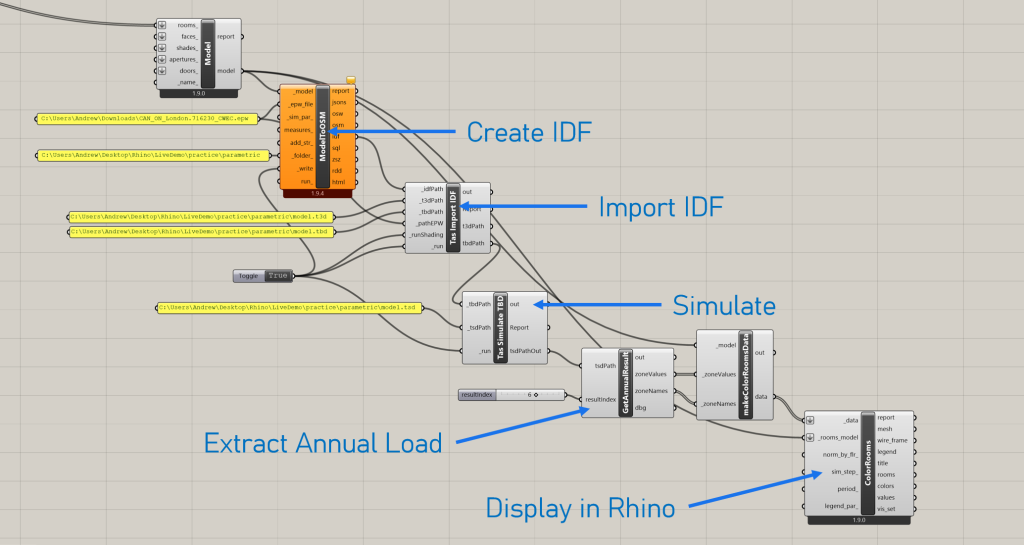
This post is made up of the following sections:
- Creating a c# script component
- Referencing the Tas libraries
- Sample: Import gbXML
- Sample: Import IDF
- Sample: Simulate TBD
- Sample: Read TSD results
Creating a Grasshopper Script Component
Let’s start by learning how to create a c# Grasshopper script. To do so, double click anywhere in the Grasshopper canvas and type in “c# script”:
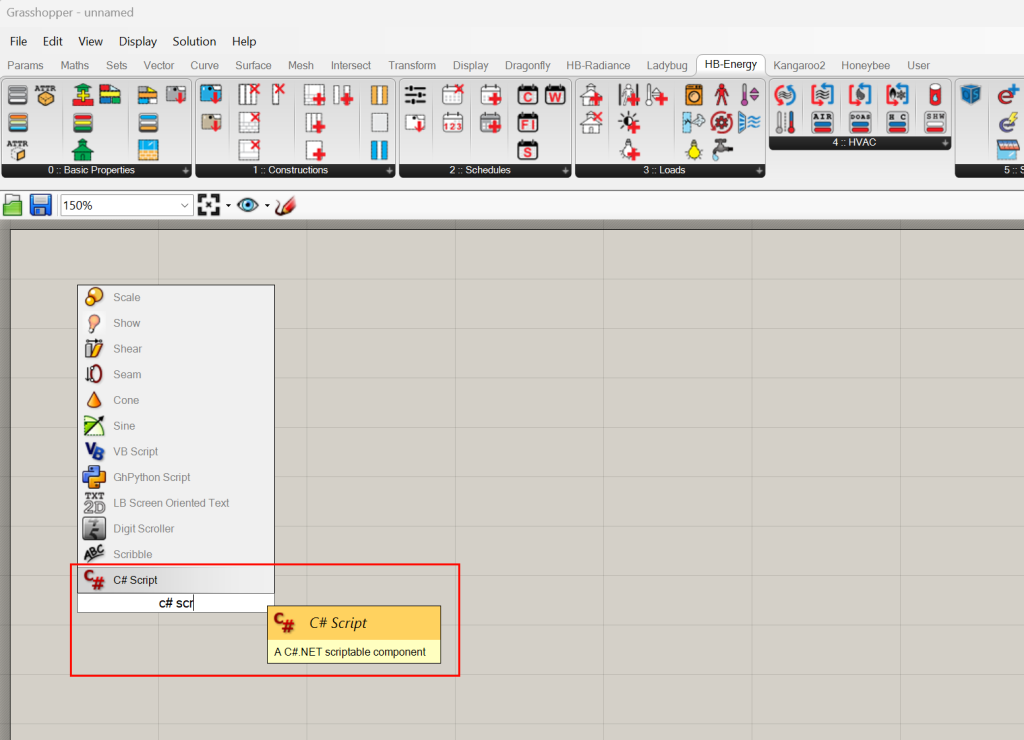
Place the c# script component and then zoom in on it. Once you have done so, you will see script inputs on the left and outputs on the right side of the component:
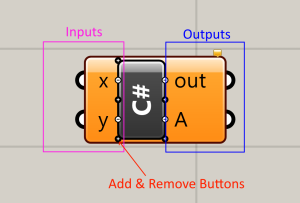
If you zoom in enough on the component, you will see plus and minus icons within a circle as per the image above. These are buttons that allow you to add and remove inputs and outputs from the component.
You can also rename inputs and outputs by right clicking on the name of the input or output and editing the text directly in the menu that appears:
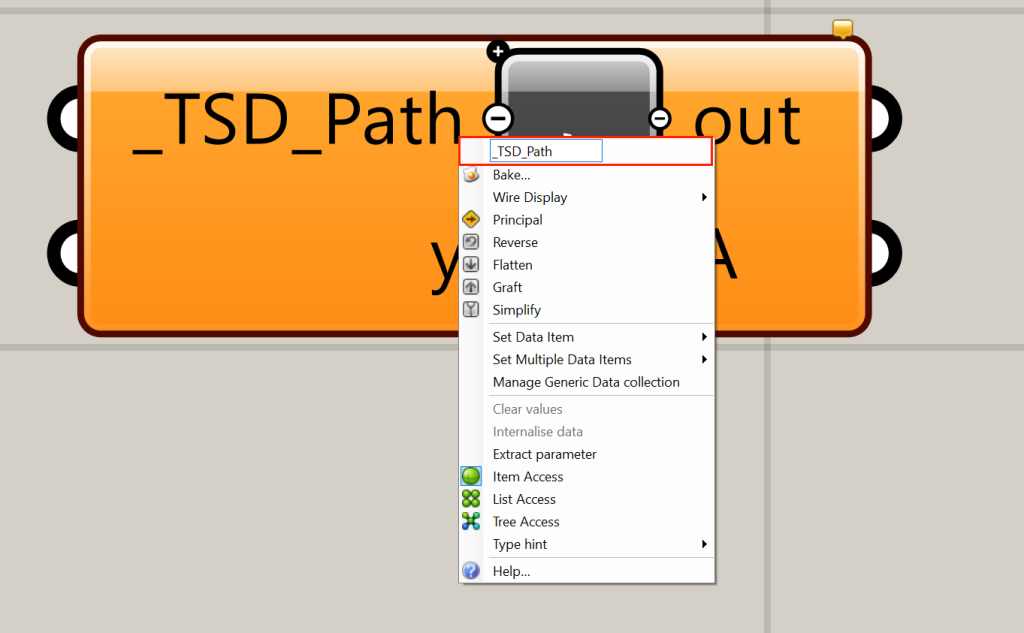
Now that we have placed a script component and have named some input/output variables, we can double click on the component to edit the script:
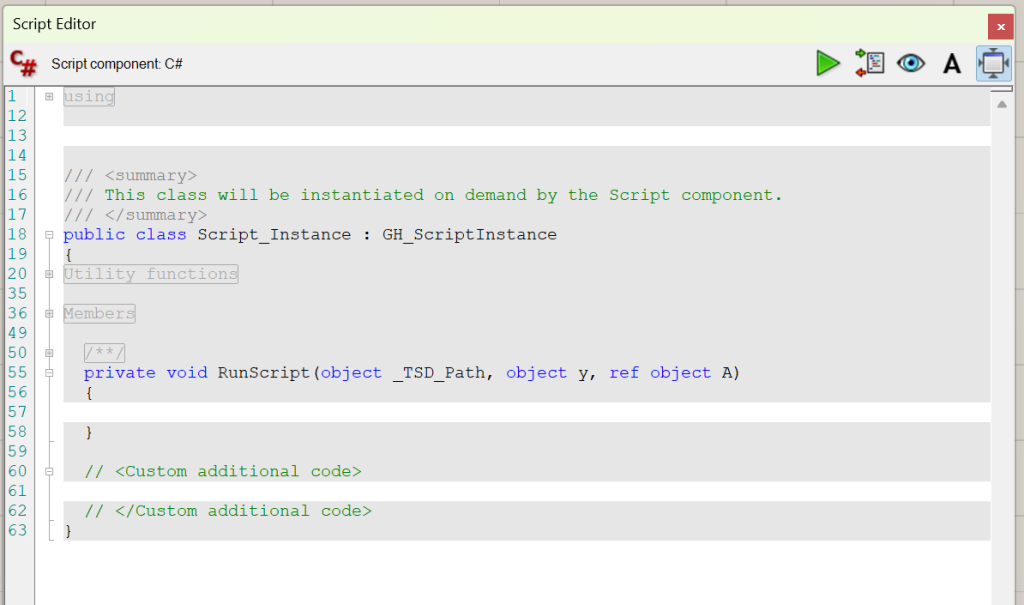
As you can see, the _TSD_Path variable we named on the component appears as an input to the RunScript function, and the outputs are also variables passed by reference. Passing by reference means that something may use the value of the variable outside of that function – which is exactly what we would expect with an output variable.
You will also notice that most of the lines in the script editor are grey – these are lines we cannot edit or change. We can define new functions outside RunScript in the ‘Custom Additional Code’ section and we can call those functions from within the RunScript function.
Adding Library References
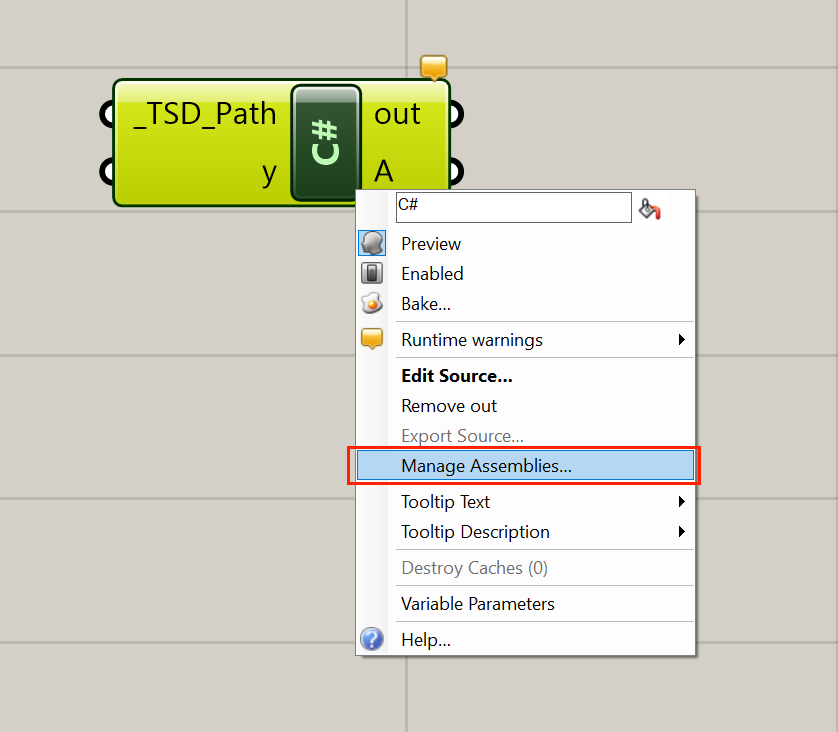
If we want to be able to control Tas from our Grasshopper script so that Grasshopper knows what , for example, a TSD Document is, we need to reference the Tas interoperability libraries. To do so, right click on the c# script component and select Manage Assemblies:
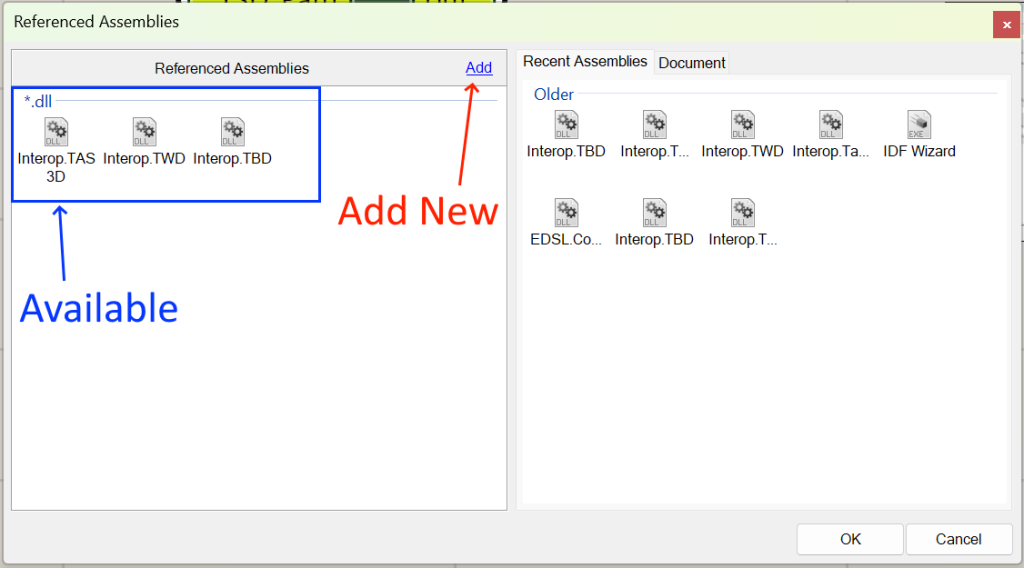
The Tas libraries can be found in the Tas installation directory, and have names like:
- Interop.TAS3D.dll <- 3D Modeller
- Interop.TSD.dll <- Results Viewer
- Interop.TBD.dll <- Building Simulator
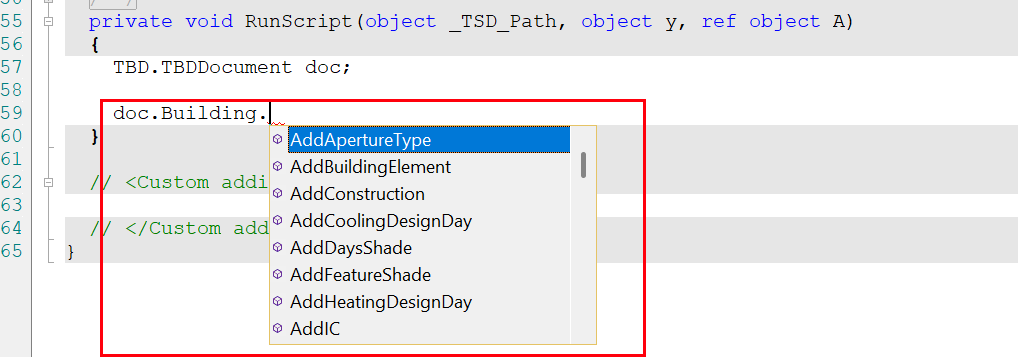
Once these have been reference, you’ll see intellisense style auto-complete suggestions when writing scripts:
Sample: Importing gbXML
This sample script demonstrates how to automatically import a gbXML file into Tas3D. You’ll need to reference the Interop.Tas3D.dll as described in the previous section for this component to function.
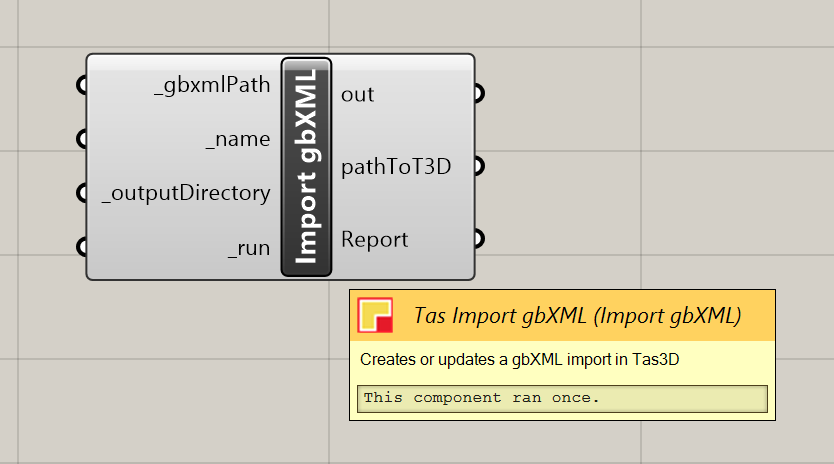
					  private void RunScript(object _gbxmlPath, object _name, object _outputDirectory, object _run, ref object pathToT3D, ref object Report)
  {
    //null check on the required inputs
    if (_gbxmlPath == null || _name == null || _outputDirectory == null || _run == null)
    {
      Report = "One or more required inputs are not specified";
      return;
    }

    //cast the inputs to their expected types
    string gbxmlPath = (string) _gbxmlPath;
    string name = (string) _name;
    string outputDirectory = (string) _outputDirectory;
    bool run = (bool) _run;
    if (!run)
    {
      Report = "Run flag is set to false. Exiting without action.";
      return;
    }

    //check if the gbXML file exists
    if (!System.IO.File.Exists(gbxmlPath))
    {
      Report = "The specified gbXML file does not exist: {gbxmlPath}";
      return;
    }

    //check if the output directory exists, if not create it
    if (!System.IO.Directory.Exists(outputDirectory))
    {
      //add a note about creating the directory
      Report = "The specified output directory does not exist. Creating: {outputDirectory}";
      System.IO.Directory.CreateDirectory(outputDirectory);
    }

    //construct the t3d path
    var t3dPath = System.IO.Path.Combine(outputDirectory, name + ".t3d");

    //open an instance of the 3D modeller
    var doc = new TAS3D.T3DDocument();

    //does the file already exist?
    bool fileExists = System.IO.File.Exists(t3dPath);


    if(fileExists)
    {
      if(!doc.Open(t3dPath)) throw new Exception("Failed to open the t3d. is it in use?");
    }else
    {
      //better create one
      doc.Create();
    }

    //now import the gbXML
    doc.ImportGBXML(gbxmlPath, 1, 1, 1);

    //save and close
    doc.Save(t3dPath);
    doc.Close();

    //report success
    Report = "Successfully imported gbXML file to T3D: {t3dPath}";

    pathToT3D = t3dPath;
  }
Sample: Importing IDF
This sample script demonstrates how to automatically import an IDF file into Tas3D. You’ll need to reference the Interop.Tas3D.dll as described in the previous section for this component to function.
You’ll also need to import the IDF Wizard.exe.
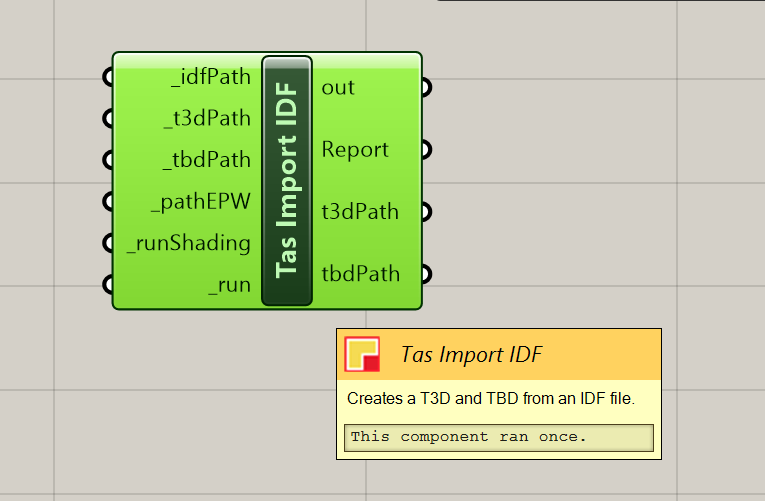
					private void RunScript(object _idfPath, object _t3dPath, object _tbdPath, object _pathEPW, object _runShading, object _run, ref object Report, ref object t3dPath, ref object tbdPath)
  {
    //check inputs
    if (_idfPath == null || _t3dPath == null || _tbdPath == null || _runShading == null || _pathEPW == null || _run == null)
    {
      Report = "One or more required inputs are not specified";
      return;
    }

    //cast to their proper types
    string idfPath = (string) _idfPath;
    string t3dPathOut = (string) _t3dPath;
    string tbdPathOut = (string) _tbdPath;
    bool runShading = (bool) _runShading;
    string pathEPW = (string) _pathEPW;
    bool run = (bool) _run;
    if (!run)
    {
      Report = "Run flag is set to false. Exiting without action.";
      return;
    }

    //check if the idf file exists
    if (!System.IO.File.Exists(idfPath))
    {
      Report = "The specified idf file does not exist: {idfPath}";
      return;
    }

    //we have to delete the t3d and tbd if they exist already. merge is not yet supported.
    if(System.IO.File.Exists(t3dPathOut))
    {
      System.IO.File.Delete(t3dPathOut);
    }

    if(System.IO.File.Exists(tbdPathOut))
    {
      System.IO.File.Delete(tbdPathOut);
    }

    var importer = new IDF_Wizard.clsProjectManager(true, true);
    importer.IDFPath = idfPath;
    importer.Options = new IDF_Wizard.clsOptions();
    importer.Options.FilePathEPW = pathEPW;
    importer.Options.WeatherEPW = true;
    importer.Options.InternalConditions = true;
    importer.Options.UnusedConstructions = true;
    importer.Options.Automation = true;


    importer.Import(idfPath, tbdPathOut, t3dPathOut, null);

    if(!runShading )
    {
      //no shading, we are done.
      Report = "Import completed without shading.";
      return;
    }

    //check we have a t3d file now. if not, something probably went wrong.
    if (!System.IO.File.Exists(t3dPathOut))
    {
      Report = "Import failed: T3D file was not created.";
      return;
    }

    //and check for the tbd too
    if(!System.IO.File.Exists(tbdPathOut))
    {
      Report = "Import failed: TBD file was not created.";
      return;
    }

    //ok we better do the shading. open the t3d
    var doc = new TAS3D.T3DDocument();
    if (!doc.Open(t3dPathOut))
    {
      Report = "Failed to open the T3D file for shading. Is it in use?";
      return;
    }

    doc.ExportNew(1, 365, 15, 1, 1, 1, tbdPathOut, 0, 0, 0);

    //report finished
    Report = "Finished.";
    tbdPath = tbdPathOut;
    t3dPath = t3dPathOut;
  }
Sample: Simulating a TBD
This sample script demonstrates how to open and simulate a TBD. You’ll need to reference the Interop.TBD.dll as described in the previous section for this component to function.
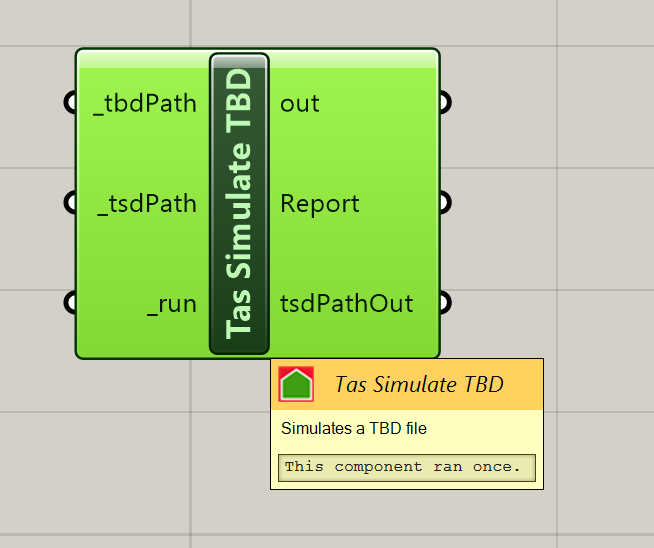
					private void RunScript(object _tbdPath, object _tsdPath, object _run, ref object Report, ref object tsdPathOut)
  {
    //check inputs
    if(_run == null || !(bool) _run)
    {
      return;
    }

    //check tbd path
    if(_tbdPath == null)
    {
      Report = "No TBD path specified.";
      return;
    }

    //check tsd path
    if(_tsdPath == null)
    {
      Report = "No TSD path specified.";
      return;
    }

    //cast to proper types
    string tbdPath = (string) _tbdPath;
    string tsdPath = (string) _tsdPath;


    //check if the tbd file exists
    if (!System.IO.File.Exists(tbdPath))
    {
      Report = "The specified tbd file does not exist: {tbdPath}";
      return;
    }

    //open the tbd
    var doc = new TBD.TBDDocument();
    if(doc.openReadOnly(tbdPath) == 0)
    {
      Report = "Failed to open the TBD file. Is it in use?";
      return;
    }

    //export the tsd
    if(doc.simulate(1, 365, 0, 1, 0, 0, tsdPath, 1, 0) == 0)
    {
      Report = "Failed to simuate the TBD.";
      return;
    }

    //report success, return the tsd path
    Report = "Successfully simulated TBD.";
    tsdPathOut = tsdPath;

  }
Sample: Reading a TSD result
This sample script demonstrates how to open a TSD file and read the annual cooling result for all zones. You’ll need to reference the Interop.TSD.dll as described in the previous section for this component to function.
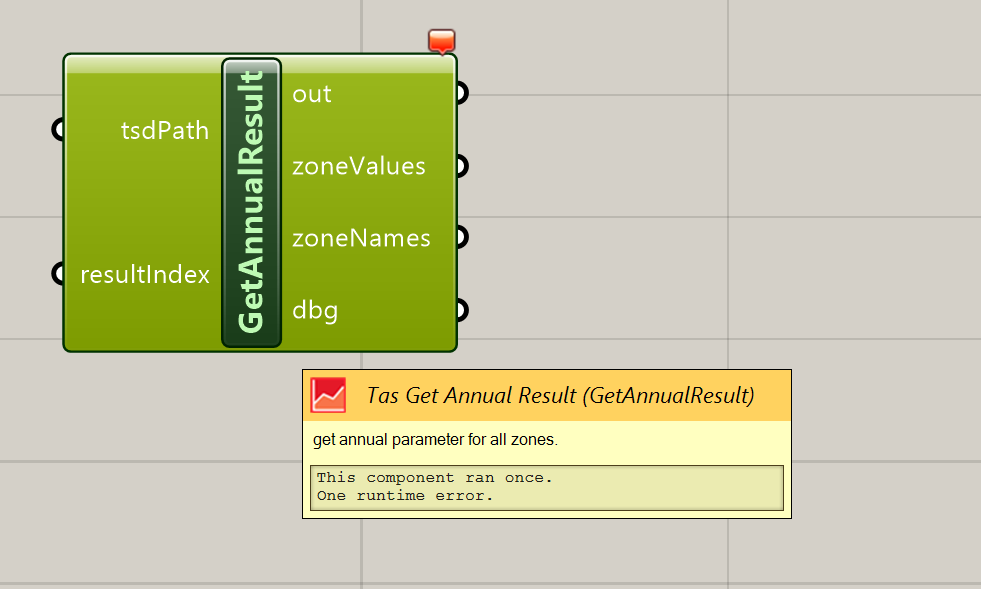
					private void RunScript(object tsdPath, object resultIndex, ref object zoneValues, ref object zoneNames, ref object dbg)
  {
    var names = new List<string>();
    var values = new List<double>();


    var resultIndexInt = int.Parse(resultIndex.ToString());

    string strPath = tsdPath as string;
    if (string.IsNullOrWhiteSpace(strPath))
    {
      zoneNames = names;
      zoneValues = values;
      return;
    }

    try
    {
      //open TSD document
      var doc = new TSD.TSDDocument();

      if (!doc.openReadOnly(strPath))
      {
        Rhino.RhinoApp.WriteLine("Failed to open TSD document at path: " + tsdPath);
        zoneNames = names;
        zoneValues = values;
        return;
      }


      //access simulation + building data
      var sim = doc.SimulationData;
      var bld = sim.GetBuildingData();

      int zoneCount = bld.zoneCount;
      Rhino.RhinoApp.WriteLine(zoneCount.ToString());
      for (int i = 1; i <= zoneCount; i++)
      {
        var z = bld.GetZoneData(i);
        dbg = z.name;
        string name = z.name;
        float[] val = (float[]) z.GetAnnualSumZoneResult((TSD.tsdZoneArray) resultIndexInt, 1, 365, TSD.tsdResultsPeriod.tsdResultsPeriodAnnual, false);
        dbg = val;
        names.Add(name);
        values.Add(val[0]);

      }
    }
    catch (Exception ex)
    {
      dbg = ex;
      Rhino.RhinoApp.WriteLine("Error accessing Tas TSD: " + ex.Message);
    }

    zoneNames = names;
    zoneValues = values;
    dbg = zoneNames;
  }